Digital signage software for Windows 10 and 11
PixelFlow Player runs as a fullscreen desktop app on any Windows 10 / 11 PC or mini-PC. One quick install, pair with a code, and it looks after itself — downloading new versions in the background ready for you to install from the dashboard, bringing itself straight back if it ever crashes, and restarting itself overnight if you switch that on. It plays offline, the same as on every other platform. PixelFlow Studio, the dashboard you open in a browser, runs all your screens from one place: see what every screen is playing right now, and reach any of them from your desk — 30+ commands on Windows.
Hardware you need
- On Windows — Windows 10 or 11, on a PC or mini-PC.
Set up in 5 steps
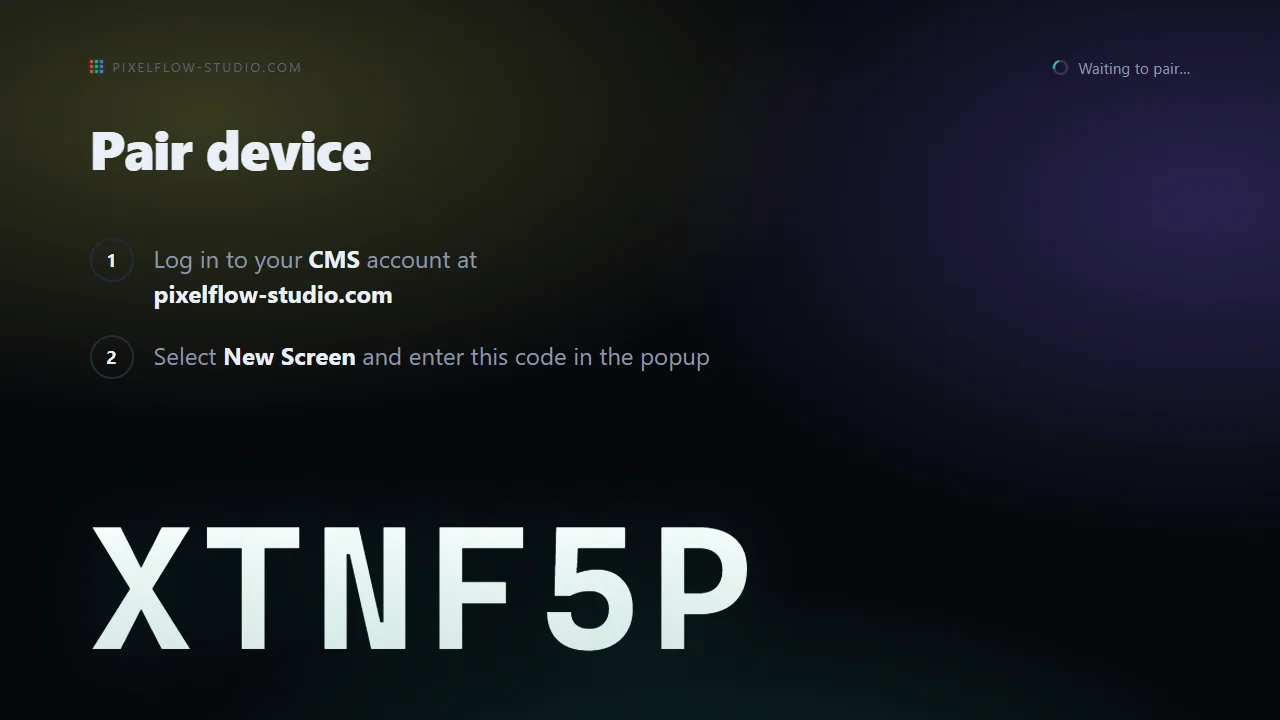
- Install PixelFlow Player on the PC or mini-PC.
- The screen shows a pairing code.
- Enter the code in PixelFlow Studio at pixelflow-studio.com.
- Upload your videos, images and designs, and drop them into a playlist.
- Assign the playlist to your screens — one, a dozen, or every screen you run, in a single go. They update within seconds.
Players marked Beta are still in development. Test them on your own screens before a full rollout, and report any problem to support@pixelflow-studio.com.
FAQ
Does it play when the internet drops?
Yes. A copy of your content is cached on every player. An outage, flaky shop wifi, someone rebooting the router — none of it touches the screen.
How many screens can I run?
Whether it’s five screens in one office or five hundred across the country, PixelFlow Studio runs them all from one place.
Which other devices does PixelFlow support?
PixelFlow Player also runs on Android, Raspberry Pi, Samsung Smart Signage, ChromeOS and in a browser — the same player, the same content and the same dashboard on every platform. Hardware & Compatibility lists what each one needs.